
How to Tell if My Wi-Fi Is 2.4 or 5 GHz
If your Wi-Fi feels slow or keeps dropping out, the problem might be your network band. Most routers use two […]
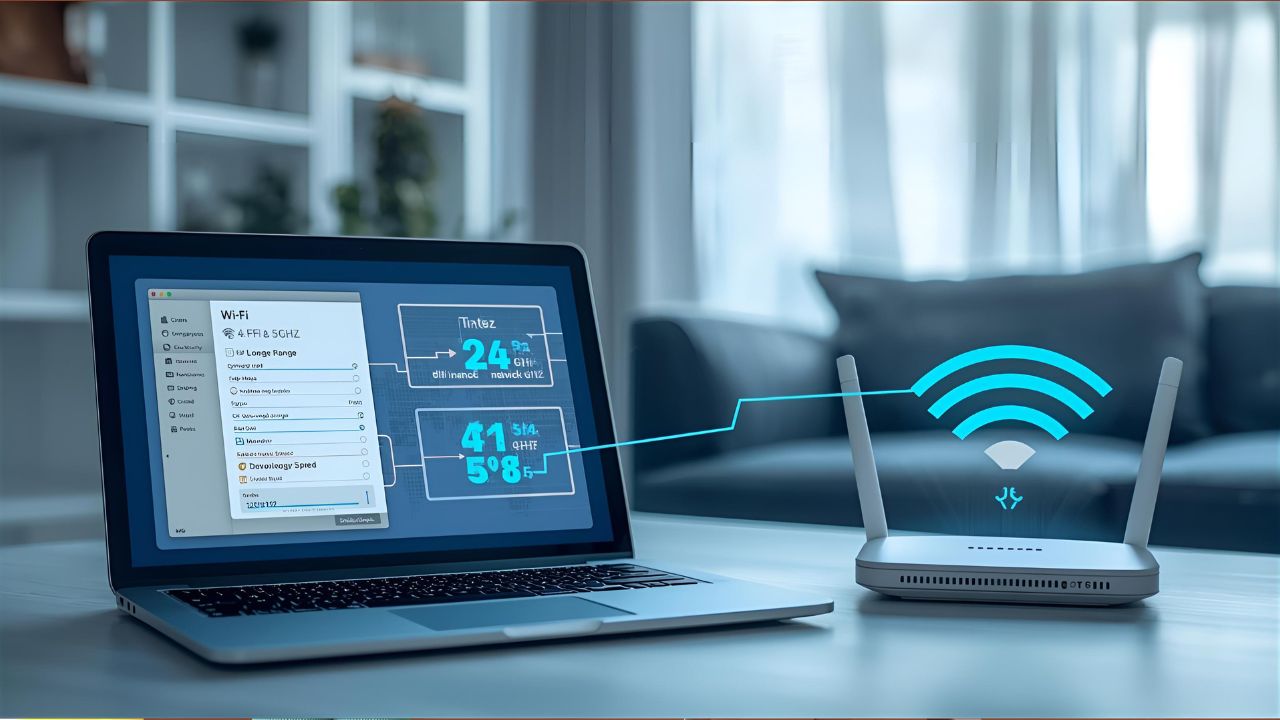
If your Wi-Fi feels slow or keeps dropping out, the problem might be your network band. Most routers use two main Wi-Fi frequencies—2.4 GHz and 5 GHz.
Knowing which one you’re using can help you get better speed, range, and stability.
This guide explains what each band does and how to check your Wi-Fi frequency on any device.
Understanding 2.4 GHz and 5 GHz Wi-Fi
Your Wi-Fi frequency affects both your speed and coverage.
Here’s what you need to know:
- 2.4 GHz travels farther and works better through walls, but it’s slower and more crowded.
- 5 GHz is faster and cleaner, but its range is shorter.
- Many routers today are dual-band, meaning they broadcast both at the same time.
If your router name (SSID) includes “2.4G” or “5G,” that already tells you which band you’re on.
How to Check What GHz Your Wi-Fi Is Using
The steps depend on your device. Let’s go through each one.
On iPhone
- Check the Wi-Fi name:
If your network name has “2.4G” or “5G” in it, that’s your band.
Example: “HomeWiFi_2.4G” means 2.4 GHz. - Use Apple’s AirPort Utility app:
Turn on Wi-Fi scanning under Settings > AirPort Utility, then open the app. It will show your Wi-Fi frequency. - Check your router:
Open Safari, type your router’s IP (like 192.168.1.1), and log in. You’ll see which band your iPhone is connected to.
On Android
- Open Settings > Network & Internet > Wi-Fi.
- Tap your connected network.
- Look for “Frequency” or “Channel.”
It will say 2.4 GHz or 5 GHz directly.
You can also install an app such as Wi-Fi Analyzer to see detailed network information.
On Windows
- Press Windows + R, type
cmd, and hit Enter. - In Command Prompt, type:
netsh wlan show interfaces - Look for the line called Channel:
- Channels 1–13 = 2.4 GHz
- Channels 36+ = 5 GHz
Alternatively, open Settings > Network & Internet > Wi-Fi > Hardware Properties to see the band information.
On Mac
- Hold the Option key and click the Wi-Fi icon on your menu bar.
- You’ll see a “Channel” line in the dropdown.
- Channels 1–13 = 2.4 GHz
- Channels 36+ = 5 GHz
On Your Router
- Open a browser and enter your router’s IP address (usually 192.168.0.1 or 192.168.1.1).
- Log in using your admin details.
- Go to Wireless Settings or Network Settings.
- You’ll see if both 2.4 GHz and 5 GHz bands are active.
You can also rename them (for example, “Home_2.4G” and “Home_5G”) to make switching easier later.
How to Switch Between 2.4 GHz and 5 GHz
Switching bands can help improve speed or signal quality.
- Give each band a unique name:
In your router settings, rename them clearly—for example:
“MyWiFi_2.4G” and “MyWiFi_5G.” - Connect to the one you want:
Open your Wi-Fi settings on any device and select the band name you prefer. - Stay connected:
If your device keeps switching back, forget the unwanted network in your settings.
How to Test Wi-Fi Band and Signal Strength
You can check how strong your Wi-Fi signal is using apps like NetSpot, Wi-Fi Analyzer, or Fing.
They show your GHz band, signal strength, and nearby network interference.
Wi-Fi signal is measured in dBm (decibels milliwatts):
- –30 dBm: Excellent
- –67 dBm: Good for streaming
- –80 dBm: Weak signal
- –90 dBm: Unusable
If the 5 GHz signal looks weak, try switching to 2.4 GHz—it reaches farther and handles walls better.
2.4 GHz vs. 5 GHz: Quick Comparison
| Feature | 2.4 GHz | 5 GHz |
|---|---|---|
| Speed | Moderate | Faster |
| Range | Longer | Shorter |
| Interference | Higher | Lower |
| Best for | Smart devices, large homes | Gaming, streaming, close range |
In short, 2.4 GHz is better for coverage and smart home gear, while 5 GHz is ideal for speed and smooth streaming.
Conclusion
Checking whether your Wi-Fi is 2.4 GHz or 5 GHz only takes a minute—but it can make a big difference in your internet experience.
Once you know your band, you can choose the right one for each device, fix weak connections, and enjoy faster, more stable Wi-Fi.
If your signal still feels inconsistent, it may be time to upgrade your router or improve placement for better coverage.



Keep Exploring Zingyzon.com
Read more Zingyzon SEO, digital marketing, online earning, business, and technology guides for Australia, USA, and global readers.