
How to Reset Tile: A Complete Guide
If your Tile tracker isn’t working correctly or you want to pair it with a new device, you may need […]
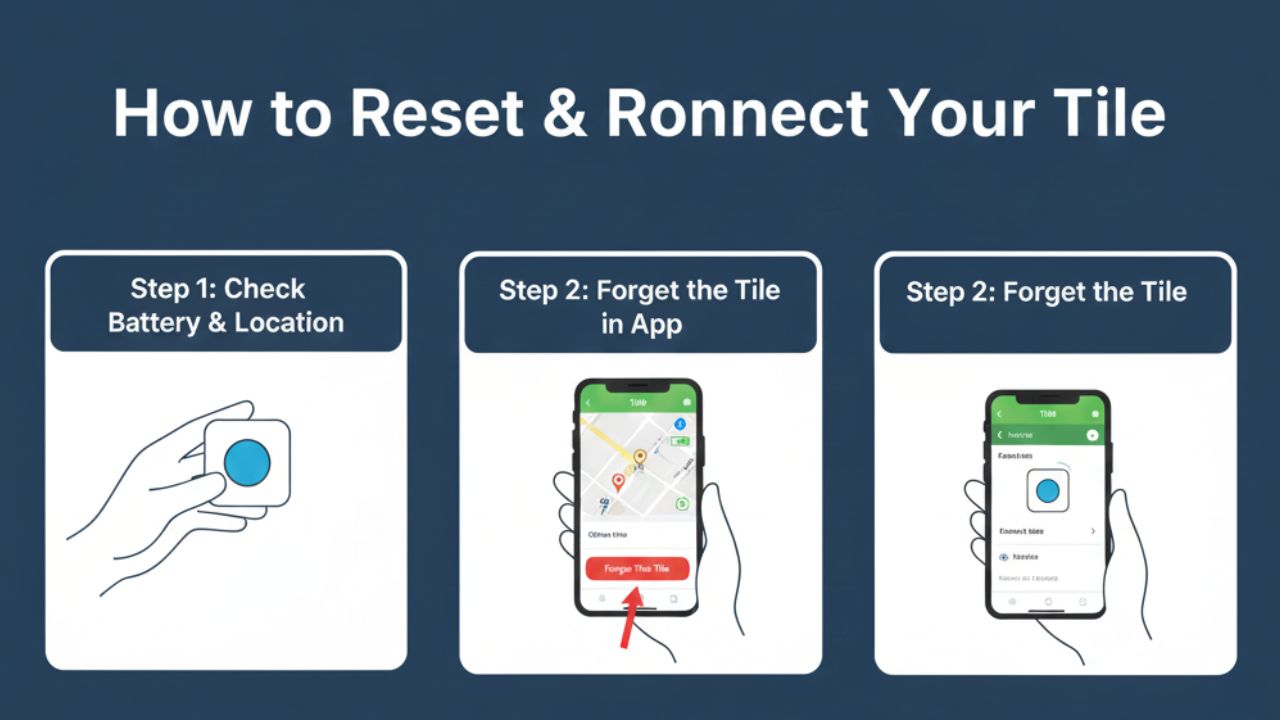
If your Tile tracker isn’t working correctly or you want to pair it with a new device, you may need to know how to reset Tile. Resetting a Tile is a simple process that restores it to factory settings, allowing you to reconnect it to your Tile app or give it to someone else. Whether you have a Tile Mate, Tile Pro, Tile Slim, or Sticker, this guide will walk you through the reset process step by step.
Why You Might Need to Reset Your Tile
Resetting your Tile can solve several common issues:
- The Tile isn’t connecting to the app
- Bluetooth connectivity problems
- You’re giving the Tile to someone else
- The Tile is not ringing or locating items correctly
A proper reset ensures your Tile is ready for a fresh start, free from old connections or settings.
Step 1: Identify Your Tile Model
Different Tile models have slightly different reset procedures. Common models include:
- Tile Mate
- Tile Pro
- Tile Slim
- Tile Sticker
Check your device before starting the reset process so you can follow the correct steps.
you can a;so check out our guide : https://zingyzon.com/how-to-remove-apple-pay-from-my-iphone/
Step 2: Open the Tile App
Before resetting, make sure you have the Tile app installed on your smartphone:
- Open the Tile app.
- Sign in to your account if necessary.
- Locate the Tile you want to reset under your device list.
This ensures your reset and reconnection process goes smoothly.
Step 3: Press the Tile Button
Most Tile devices use the physical button to reset:
- Tile Mate and Tile Pro: Press and hold the button for about 10–15 seconds until you hear a tune or the LED flashes.
- Tile Slim: Press the button for 5–10 seconds until the light flashes.
- Tile Sticker: Press the button for 3–5 seconds until you see a blinking light.
The flashing LED or sound indicates the Tile has reset and is ready to be paired again.
Step 4: Remove the Tile from Your App (Optional but Recommended)
If the Tile was previously connected to your account, it’s best to remove it:
- Open the Tile app.
- Tap on the Tile you want to remove.
- Select Remove Tile or Delete Tile from the account.
- Confirm the removal.
This ensures the Tile is unlinked from your account before pairing with a new device or user.
Step 5: Re-Pair the Tile
After resetting, you can reconnect your Tile to your account or a new device:
- Open the Tile app and tap Add a Tile.
- Follow the on-screen instructions.
- Press the Tile’s button if prompted.
- Wait for the Tile to appear in the app and complete the pairing.
Your Tile is now reset and ready for use.
Step 6: Troubleshooting Tips
If your Tile doesn’t reset properly:
- Check the battery: Some Tiles have replaceable batteries; dead batteries may prevent a reset.
- Ensure close proximity: Keep the Tile near your phone during reset and pairing.
- Restart the app or phone: Sometimes app glitches interfere with the reset process.
- Contact Tile support: If all else fails, the Tile support team can guide you.
Tips for Maintaining Your Tile
- Keep your Tile firmware updated via the app.
- Replace batteries promptly for models with removable batteries.
- Avoid exposing your Tile to water or extreme temperatures.
- Regularly check your Tiles in the app to ensure they’re active and working.
Final Thoughts
Knowing how to reset Tile is essential for troubleshooting, gifting, or reconnecting your device. By following the steps above—pressing the button, removing it from the app, and re-pairing—you can ensure your Tile tracker works perfectly every time. Regular maintenance and understanding the reset process will help you get the most out of your Tile devices and keep track of your valuable items with ease.



Keep Exploring Zingyzon.com
Read more Zingyzon SEO, digital marketing, online earning, business, and technology guides for Australia, USA, and global readers.