
How to Know If PS4 Controller Is Charging: A Complete Guide
If you’ve ever plugged in your PS4 controller and wondered how to know if PS4 controller is charging, you’re not […]
If you’ve ever plugged in your PS4 controller and wondered how to know if PS4 controller is charging, you’re not alone. Understanding whether your controller is properly charging is important to avoid interruptions during gaming. Sony’s DualShock 4 controller has built-in indicators, but it can be confusing for new users. In this guide, we’ll show you several ways to check the charging status of your PS4 controller and ensure your device is ready for uninterrupted gaming.
Why Knowing If Your PS4 Controller Is Charging Matters
Your PS4 controller runs on a rechargeable battery, and if it isn’t charging correctly:
- You might run out of battery during gameplay
- It could indicate a problem with the cable or charging port
- The battery life could shorten over time if not charged properly
By learning how to identify the charging status, you can prevent these issues and ensure your controller is always ready to use.
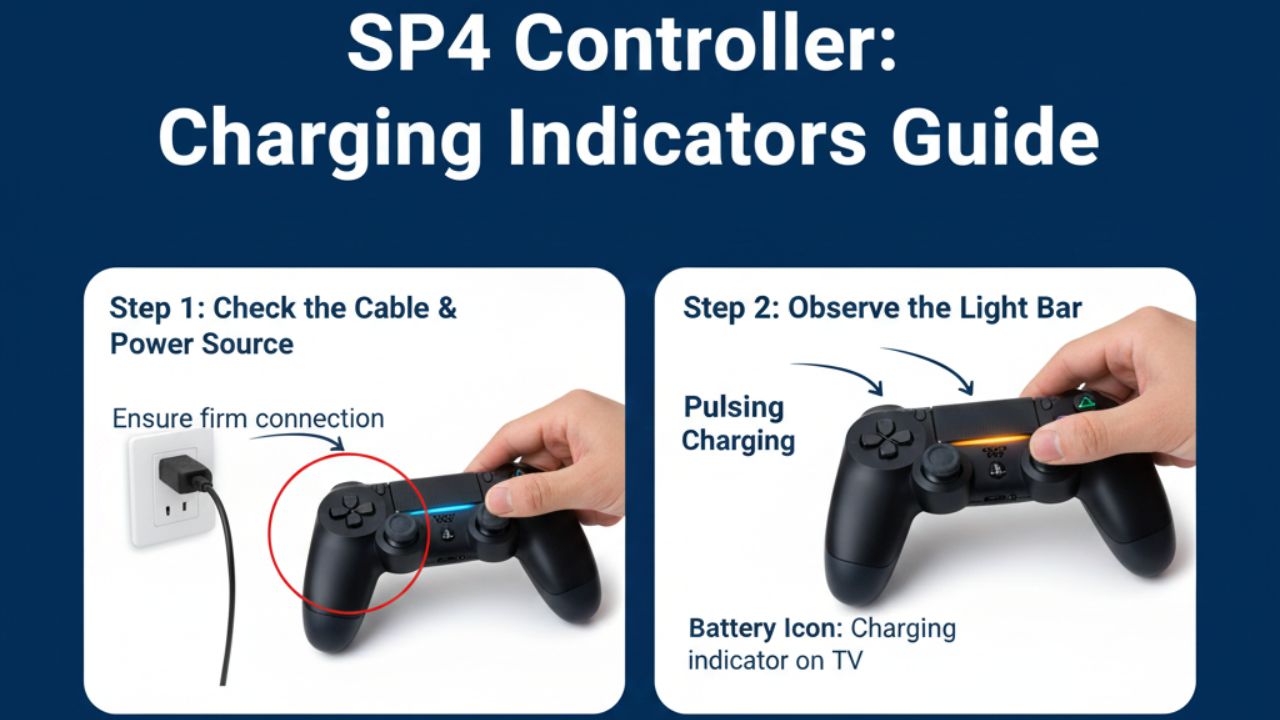
Step 1: Check the Light Bar on the PS4 Controller
The most visible indicator of charging is the light bar located on the top of the DualShock 4 controller.
- Orange/Amber Light: The controller is charging.
- No Light: Either the controller is not connected properly, or it is fully charged.
- Flashing Light: Sometimes indicates pairing mode or connection issues; check the cable or USB port.
By simply observing the light bar, you can quickly determine whether your controller is charging correctly.
Step 2: Check the Battery Icon on the PS4 Screen
When your PS4 controller is connected to the console:
- Press the PS button on the controller.
- Look at the battery icon displayed on the screen.
- The icon shows the current battery level and whether it is charging.
- Lightning bolt symbol or filling icon: The controller is actively charging.
- Full battery without symbol: The controller is fully charged.
This method gives a clear, visual confirmation of the controller’s charging status.
Step 3: Use a USB Cable and Port Properly
Sometimes your controller may not charge if the cable or port is faulty. Follow these tips:
- Use the official Sony USB charging cable or a high-quality replacement.
- Plug the controller directly into the PS4 console USB port, not a third-party hub.
- Ensure the connection is secure; loose connections may prevent charging.
Proper connections ensure your controller charges efficiently and helps you identify the charging status easily.
Step 4: Charging via a Charging Dock
If you have a DualShock 4 charging dock, the indicators are usually simpler:
- Red or orange LED on the dock: The controller is charging.
- Green LED: The controller is fully charged.
Charging docks provide a convenient alternative for checking battery status without turning on the console.
you can also check out our guide : zingyzon.com
Step 5: Troubleshooting Charging Issues
If your controller isn’t charging, try the following:
- Check the cable: Swap the USB cable with a known working one.
- Inspect the port: Look for dirt, dust, or damage in the controller’s charging port.
- Reset the controller: Press the small reset button on the back of the controller using a pin or paperclip.
- Try another USB port: Sometimes the console’s USB port may not supply enough power.
These steps can help you quickly identify if there’s a hardware issue or just a minor connection problem.
Tips for Maintaining PS4 Controller Battery Life
- Charge regularly: Avoid letting the battery drain completely frequently.
- Avoid overcharging: Disconnect once fully charged to prolong battery health.
- Store properly: Keep the controller in a cool, dry place.
- Avoid cheap chargers: Use recommended charging methods for safety and longevity.
Proper care ensures your controller stays in top condition and helps you know exactly when it’s charging.
Final Thoughts
Knowing how to know if PS4 controller is charging is simple once you understand the light bar, battery icon, and charging methods. Regularly monitoring your controller ensures uninterrupted gameplay and prolongs battery life. Whether using the console’s USB ports, a charging dock, or checking the screen indicators, these methods help you quickly determine the charging status.
With these tips, you’ll never have to worry about a dead controller mid-game again.



Keep Exploring Zingyzon.com
Read more Zingyzon SEO, digital marketing, online earning, business, and technology guides for Australia, USA, and global readers.