
How to Stretch an Image in Photoshop: Simple and Clear Guide
Stretching an image in Photoshop is easier than most people think. With the right tools and settings, you can change […]
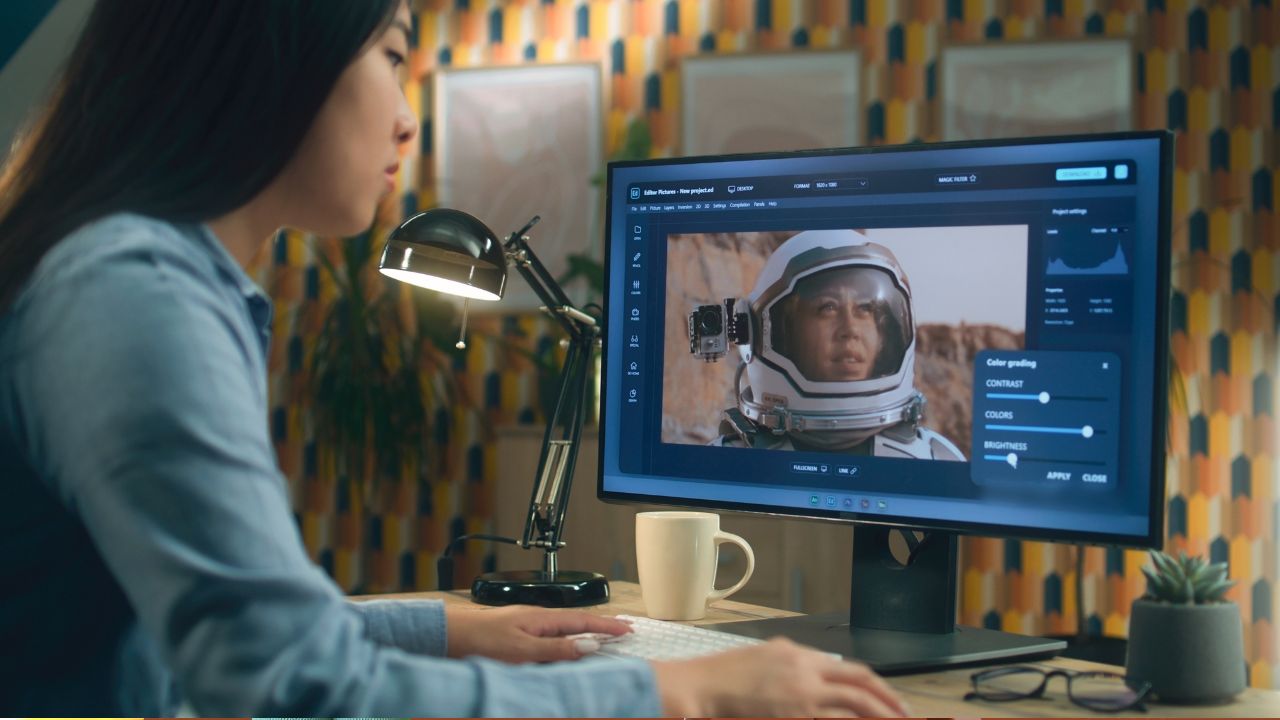
Stretching an image in Photoshop is easier than most people think. With the right tools and settings, you can change the size of a picture, extend parts of it, or adjust proportions without losing too much quality. This guide explains every step in a clean, easy-to-read format.
Before You Begin: Prepare Your Image
- Open your image
Go to File > Open and select the picture you want to work with. - Duplicate your layer
Right-click the image layer in the Layers panel and choose Duplicate Layer. This helps you keep a safe backup of the original. - Check image quality
Stretching works better with high-resolution images. Low-resolution photos may become blurry or pixelated. - Make basic adjustments
Fix exposure, color balance, or sharpness before stretching the image. - Save a separate copy
Use Save As so you always have the untouched version stored.
Method 1: Stretch an Image Using the Free Transform Tool
This is the quickest and most commonly used method.
- Open your image.
- Go to Edit > Free Transform or press Ctrl + T (Windows) or Command + T (Mac).
- Drag the corner handles to stretch the image.
- Hold Shift to keep proportions unchanged.
- Release the mouse when you reach the size you want.
- Press Enter to apply changes.
This method is great for quick resizing and basic stretching.
you can also check out our guide : zingyzon.com
Method 2: Stretch an Image Using the Image Size Command
This tool adjusts width and height using exact numerical values.
- Go to Image > Image Size.
- Uncheck Constrain Proportions if you want to stretch the image unevenly.
- Enter your new width and height.
- Keep Resample checked so Photoshop can create new pixels.
- Click OK and save your image.
This method is best for accurate, measured resizing.
Method 3: Stretch an Image by Expanding Canvas Size
If you want extra space around your image before stretching part of it, adjust the canvas.
- Go to Image > Canvas Size.
- Check the Relative box.
- Set the amount of width and height you want to add.
- Choose an anchor point to control which side extends.
- Click OK.
You can then stretch parts of the image into the new space using selection tools.
Advanced Technique: Using Displacement Maps
A displacement map helps stretch images while preserving texture and detail.
- Create a grayscale version of your image to use as the map.
- Save it as a separate file.
- Go to Filter > Distort > Displace.
- Load your displacement map.
- Adjust the settings until the image stretches smoothly.
This method minimizes distortion and maintains surface detail.
How to Stretch Without Losing Quality
- Convert your layer to a Smart Object before stretching.
- Use Content-Aware Scale to protect important areas.
- Keep your working resolution at 300 dpi or higher.
- Stretch gradually instead of making one large change.
Common Mistakes to Avoid
- Stretching low-resolution images too far.
- Making all adjustments in one step.
- Forgetting to create backups.
- Ignoring proportional scaling rules.
Final Thoughts
Stretching images in Photoshop is straightforward once you understand the tools. Whether you use Free Transform, Image Size, or Canvas Size, each method serves a different purpose. Avoid common mistakes, use Smart Objects for safety, and work with high-quality images whenever possible. With practice, you’ll be able to stretch images cleanly and professionally.


Keep Exploring Zingyzon.com
Read more Zingyzon SEO, digital marketing, online earning, business, and technology guides for Australia, USA, and global readers.