
How to Stay Green on Teams: A Complete Guide
If you’re working remotely or in a hybrid environment, you may have asked yourself, how to stay green on Teams. […]
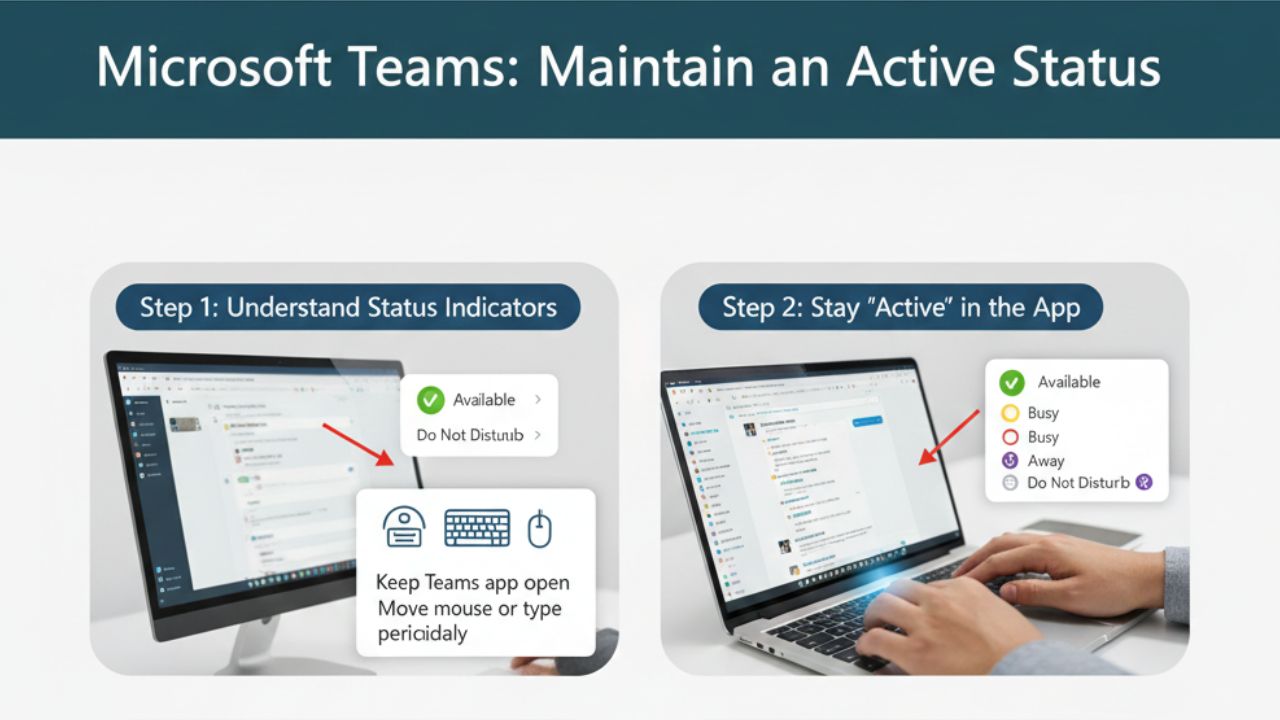
If you’re working remotely or in a hybrid environment, you may have asked yourself, how to stay green on Teams. Microsoft Teams automatically changes your status to “Away” when it detects inactivity, which can sometimes misrepresent your availability. Staying green (online) ensures your colleagues know you’re active, reachable, and working efficiently. In this guide, we’ll walk you through safe and effective ways to maintain your online status on Teams while staying productive.
Why Your Teams Status Changes
Before exploring how to stay green on Teams, it’s important to understand why Teams changes your status:
- Inactivity detection: Teams automatically sets you to Away if there’s no keyboard or mouse activity for a while.
- System sleep or screen savers: If your computer goes idle, Teams may mark you as Away.
- Background apps and focus mode: Some applications or full-screen programs can prevent Teams from registering activity.
Knowing these factors helps you take the right steps to stay online while working naturally.
Step 1: Adjust Your Status Manually
Teams allows you to manually set your status to Available, Busy, or Do Not Disturb:
- Click your profile picture in the top-right corner of Teams.
- Select Available from the status dropdown.
- You can set a duration for your status to remain green.
Manual status changes work for short periods but won’t override inactivity detection indefinitely.
Step 2: Use Keyboard and Mouse Activity
Teams detects physical activity on your device. Simple actions like moving the mouse or pressing keys can help:
- Move your mouse or scroll periodically.
- Tap a key occasionally while reading or working.
- Avoid long stretches without activity if you want to remain green.
These small interactions signal to Teams that you are active without interrupting workflow.
Step 3: Optimize Teams Settings
You can tweak Teams settings to help maintain online status:
- Keep Teams running in the background.
- Avoid full-screen apps that block Teams from detecting activity.
- Enable notifications to keep Teams active.
These adjustments improve the system’s ability to recognize that you’re present.
you can also check out our guide : zingyzon.com
Step 4: Use Approved Tools or Shortcuts
There are legitimate ways to simulate activity safely:
- Mouse jiggler apps or keyboard scripts can prevent Teams from switching to Away, but make sure they are approved by your IT department.
- Some users set their laptop to prevent sleep mode while working, which also helps maintain a green status.
Avoid unapproved software that could violate workplace policies or compromise security.
Step 5: Communicate Your Availability
Even with technical solutions, communication is key:
- Use a status message to indicate if you’re stepping away briefly.
- Notify team members if you’re busy but available for urgent messages.
- Transparency helps avoid misunderstandings and ensures colleagues respect your availability.
Step 6: Best Practices for Staying Green
- Balance visibility and productivity: Don’t stay green artificially if you’re not available.
- Take regular breaks: Communicate breaks to avoid misleading your team.
- Use Teams mobile app: Stay green when moving around the office or working remotely.
- Check status periodically: Ensure Teams reflects your actual presence.
Following these practices keeps your status green responsibly while maintaining professional behavior.
Step 7: Avoid Common Mistakes
Common pitfalls when trying to stay green include:
- Over-relying on automation: Teams may show you online, but you’re not responsive.
- Ignoring IT policies: Some organizations prohibit third-party tools.
- Misrepresenting availability: Colleagues may expect immediate responses if you appear green.
Focus on authentic presence and balance your status with actual availability.
Final Thoughts
Knowing how to stay green on Teams is essential for maintaining visibility, building trust with colleagues, and improving collaboration in remote or hybrid work environments. By combining device activity, Teams settings, and clear communication, you can stay online efficiently and professionally.
Remember, the goal is not just to appear green — it’s to stay available, productive, and transparent with your team. Implement these tips, and you’ll maintain a consistent online presence while keeping your workflow smooth and effective.



Keep Exploring Zingyzon.com
Read more Zingyzon SEO, digital marketing, online earning, business, and technology guides for Australia, USA, and global readers.