
How to Hard Reset iPhone 7: A Complete Guide
If your iPhone 7 is freezing, unresponsive, or acting glitchy, knowing how to hard reset iPhone 7 can save you […]
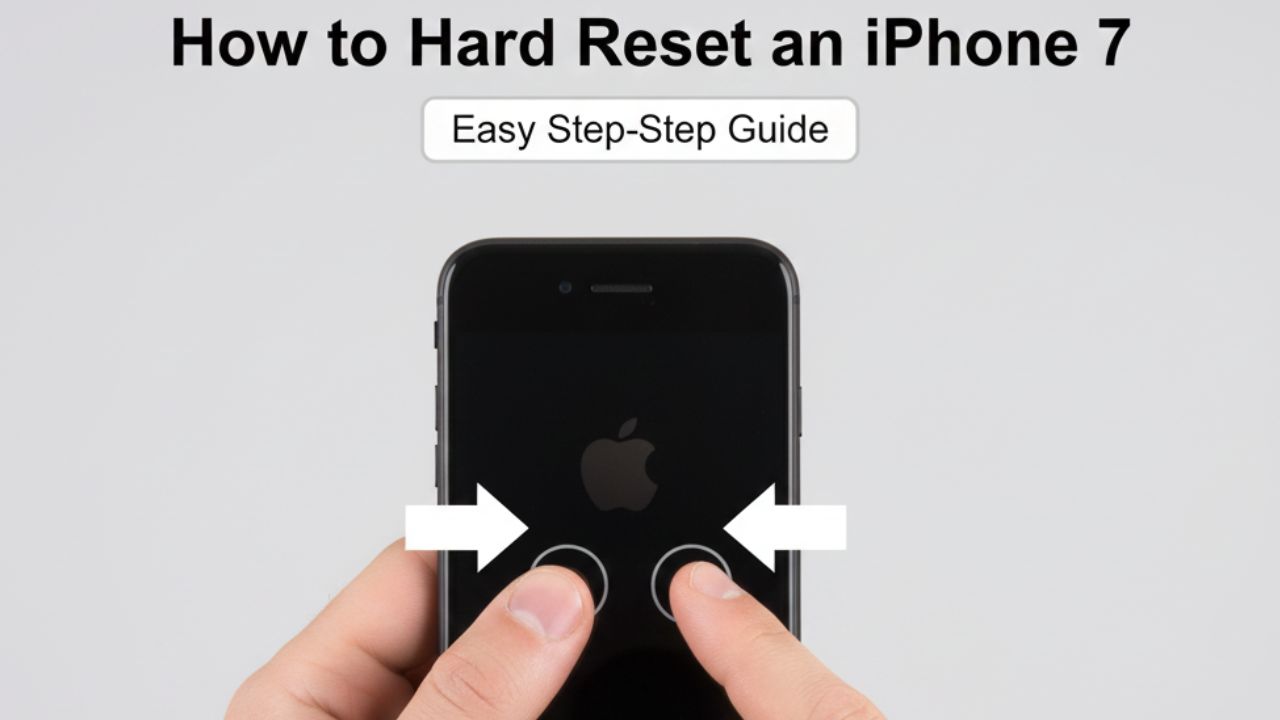
If your iPhone 7 is freezing, unresponsive, or acting glitchy, knowing how to hard reset iPhone 7 can save you a lot of frustration. Unlike older iPhone models, the iPhone 7 requires a specific combination of buttons to perform a hard reset due to its redesigned home button. This guide will walk you through the process step by step, explain why and when to use a hard reset, and provide tips to prevent data loss or recurring problems.
A hard reset is often the first step in troubleshooting minor software issues, helping your iPhone return to normal operation without affecting your personal data.
What Is a Hard Reset?
A hard reset, also called a force restart, differs from a factory reset:
- Hard Reset: Forces the iPhone to restart when it becomes unresponsive. No data is lost.
- Factory Reset: Erases all content and settings, returning the iPhone to its original state.
Understanding this difference is crucial. A hard reset is safe for everyday troubleshooting, while a factory reset should only be used when you want to wipe the device completely.
Step 1: Locate the Buttons on iPhone 7
To perform a hard reset, you need to know the button layout:
- Volume Down button: Located on the left side of the device.
- Power (Sleep/Wake) button: Located on the right side of the device.
These buttons must be pressed simultaneously for the reset process to work correctly.
Step 2: Perform the Hard Reset
Follow these steps carefully:
- Press and hold the Volume Down button.
- While holding the Volume Down button, press and hold the Power button.
- Keep holding both buttons for approximately 10–15 seconds.
- Release the buttons when the Apple logo appears on the screen.
Your iPhone 7 will restart, and most temporary software issues should be resolved.
Step 3: Confirm the Reset Worked
After the device restarts:
- Check if the screen responds to touch.
- Open and test apps to ensure functionality.
- Verify that notifications and system features work correctly.
If your iPhone is still unresponsive, additional troubleshooting steps may be needed.
Step 4: When to Use a Hard Reset
A hard reset is useful in situations such as:
- The iPhone is frozen or unresponsive.
- Apps keep crashing or are slow to load.
- The screen is black or frozen but the device has battery.
- Minor glitches occur after iOS updates.
Avoid using a hard reset repeatedly for persistent issues, as this may indicate hardware problems.
Step 5: Precautions Before Resetting
Even though a hard reset doesn’t delete data, it’s wise to take some precautions:
- Save ongoing work in apps before performing the reset.
- Charge the iPhone to at least 50% battery to prevent unexpected shutdowns.
- Avoid pressing other buttons or trying random combinations during the restart.
These steps help ensure a smooth and safe hard reset process.
you can also check out our guide : How to Remove Apple Pay from My iPhone: Simple Step-by-Step Guide
Step 6: Troubleshooting if Hard Reset Doesn’t Work
If your iPhone 7 doesn’t respond after a hard reset:
- Charge the iPhone: A completely drained battery may prevent startup.
- Use Recovery Mode via iTunes/Finder: Connect your iPhone to a computer to restore iOS.
- Contact Apple Support: Persistent issues may indicate hardware failure.
Following these backup plans ensures that you can address more serious problems without panic.
Step 7: Maintain Your iPhone 7 Performance
To reduce the need for frequent hard resets:
- Keep iOS updated to the latest version.
- Close unused apps running in the background.
- Restart your iPhone occasionally to free memory.
- Monitor storage and remove unnecessary files.
Proper maintenance prevents software glitches and keeps your iPhone running smoothly.
Final Thoughts
Knowing how to hard reset iPhone 7 is an essential skill for troubleshooting unresponsive devices. By pressing the Volume Down and Power buttons simultaneously until the Apple logo appears, you can quickly fix minor software issues without losing personal data.
Always follow safety precautions, use the reset only when necessary, and seek professional help if problems persist. With these steps, your iPhone 7 will remain responsive, reliable, and ready for everyday use.



Keep Exploring Zingyzon.com
Read more Zingyzon SEO, digital marketing, online earning, business, and technology guides for Australia, USA, and global readers.